
Importing Compliance Tasks via CSV
Overview
Teams may import a list of tasks into the Compliance Tasks area via CSV file in order to quickly add a list of existing security and compliance tasks or define a set of task values for their security program.
This document outlines the requirements for importing tasks in bulk using a CSV file. Please follow these specifications to ensure your data is imported successfully.

Important: To avoid formatting errors, we recommend downloading the latest template file template file directly from the Import screen before starting.
How To Import Compliance Tasks Via CSV File
Login to Dash ComplyOps and navigate to the “Compliance Tasks” page on the left sidebar.
Click the “Create Task/Tasksets” button on the top right
Click the “Start Import” button
Note - Read the requirements in the next sections “General File Requirements”, “Field Specifications”, and “Allowed Values (Data Examples)” in the below sections of this documentation to see specifications on files and fields.
In this page you can take the following actions
Click the “Download CSV Template” to download an example CSV template
Click the View allowed values under the dropdown area. (Further information on file values can be found at later in this documentation page)
You can click to upload a CSV file
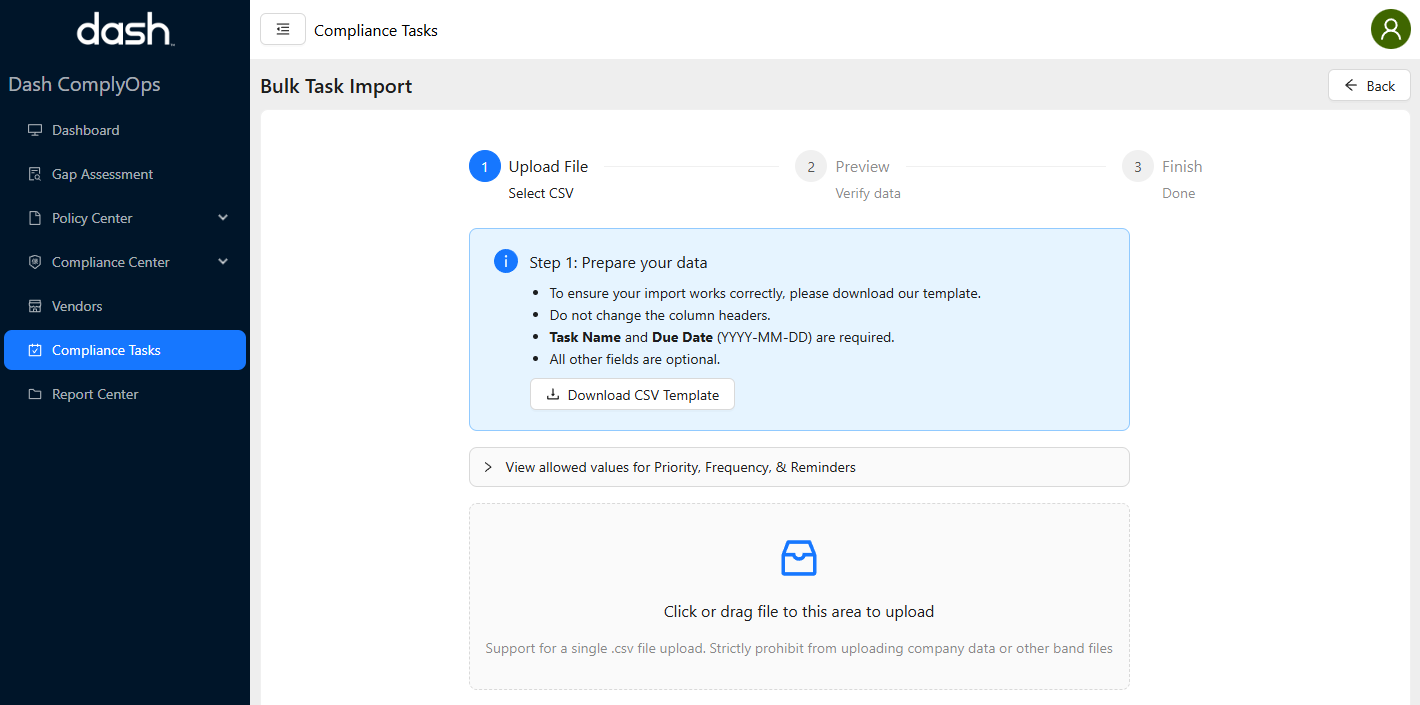
Upload a CSV file into the bottom box
After uploading your file > You will be take to a preview page that shows the first 3 rows that will be imported as compliance tasks.
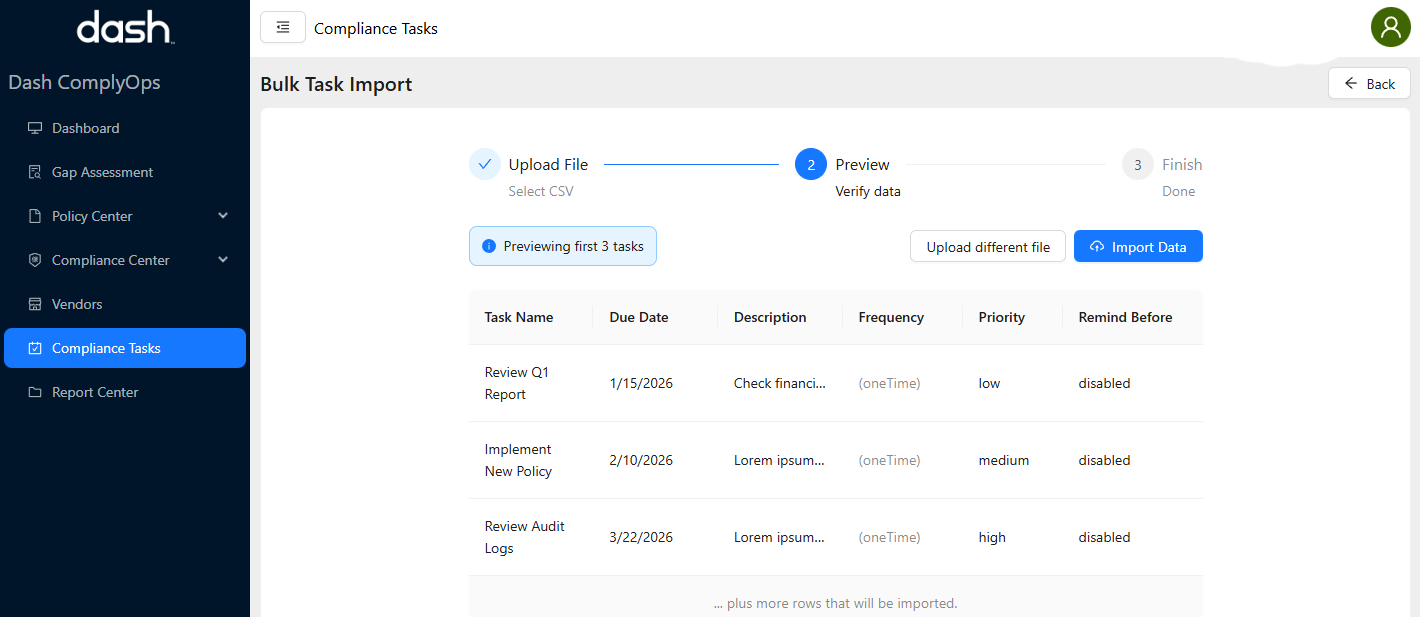
Once you are ready to import the compliance tasks > Click the “Import Data” button
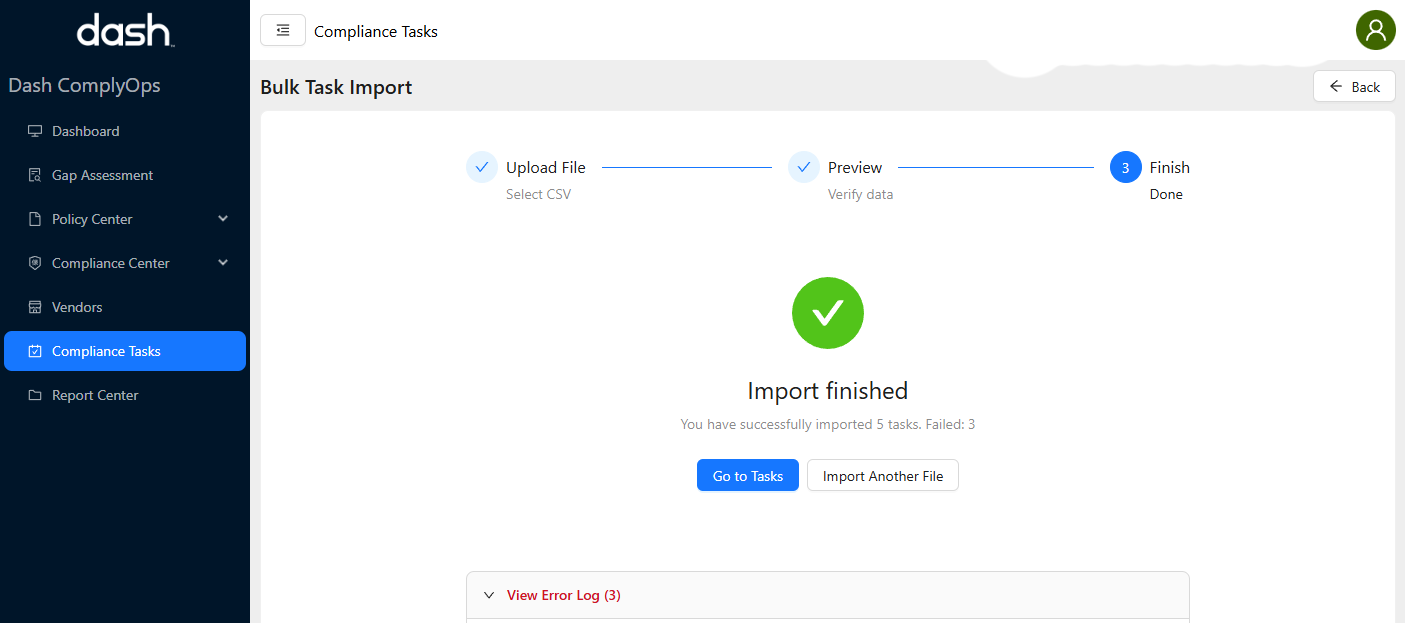
All tasks will be imported and you will be taken to a confirmation page.
Any errors will be displayed at the bottom.
You can view all successfully imported tasks in the Compliance Tasks area.
General File Requirements
File Extension: Must be .csv (Comma Separated Values).
Encoding: UTF-8 is recommended to support special characters.
Headers: Do not re-name, delete, or reorder the column headers in the first row.
File Size: We recommend that uploaded files are smaller than 3 MB.
Field Specifications
The table below details every column in the CSV file and its validation rules.
Column Header | Required? | Data Type | Limits & Rules | Default Value |
|---|---|---|---|---|
name | Yes | Text |
| - |
dueDate | Yes | Date |
| - |
description | No | Text |
| (Empty) |
frequency | No | Text |
| oneTime |
remindBefore | No | Text |
| -1 |
priority | No | Text |
| medium |
Allowed Values (Data Examples)
For the columns below, you must use one of the specific codes listed.
Frequency (Optional)
The following values may be input under the “frequency” column as values:
oneTime (Task happens once) [Default Value]
weekly (Repeats every week)
monthly (Repeats every month)
quarterly
annually
Remind Before (Optional)
The following values may be input under the “remindBefore” column as values:
-1 (No reminder) [Default Value]
7 (Email 7 Days Before Event)
3 (Email 3 Days Before Event)
0 (Email On Due Date)
Priority (Optional)
The following values may be input under the “priority” column as values:
low
medium [Default Value]
high
critical
Troubleshooting & FAQ
Q: My import failed with "Validation Error".
A: Check the following:
Is the name name longer than 255 characters or shorter then 3 characters?
Did you type a priority that isn't on the list (e.g., "Urgent" instead of high)
Are name name or dueDate missing?
Q: Can I leave optional columns empty?
A: Yes. The system will automatically apply the default values (e.g., medium priority) if the cell is empty.
Q: Where can I see the error log?
A: On the last wizard page you will see the detailed Validation Error Log Validation Error Log It has detailed description for each failed row.